Navigation menu

Choose an option from the navigation menu below.

Create a tool for MyTrader

Indicators and widgets are small apps that run inside MyTrader. Describe one to AI Creator or to your own AI assistant, such as Claude, or write the code yourself. Try it on your own charts, then share it here if you like.

  • Indicatordraws on your chart
  • Widgetopens as a panel

“Write a P/L widget for MyTrader, please!”

Watch any AI model build a P/L widget, from prompt to panel.
  • No coding needed

    The AI writes the code. You describe what you want.

  • Use the AI you like

    AI Creator in MyTrader, or Claude, ChatGPT or another assistant.

  • Private until you share it

    Only you can open it in your own MyTrader.

  • Runs in MyTrader

    MT4 and MT5 accounts connect with the MyTrader Connector EA.

Three ways to build

Pick the one that suits you. Each one ends with a tool in your MyTrader.

Describe it. AI builds it.

Tell AI Creator what the tool should do. It writes the code, you try it in MyTrader and ask for changes until it works the way you want.

Try AI Creator

Or try

  • Lot size for 1% risk
  • Spread alert above 2 pips
  • London session box
  1. You

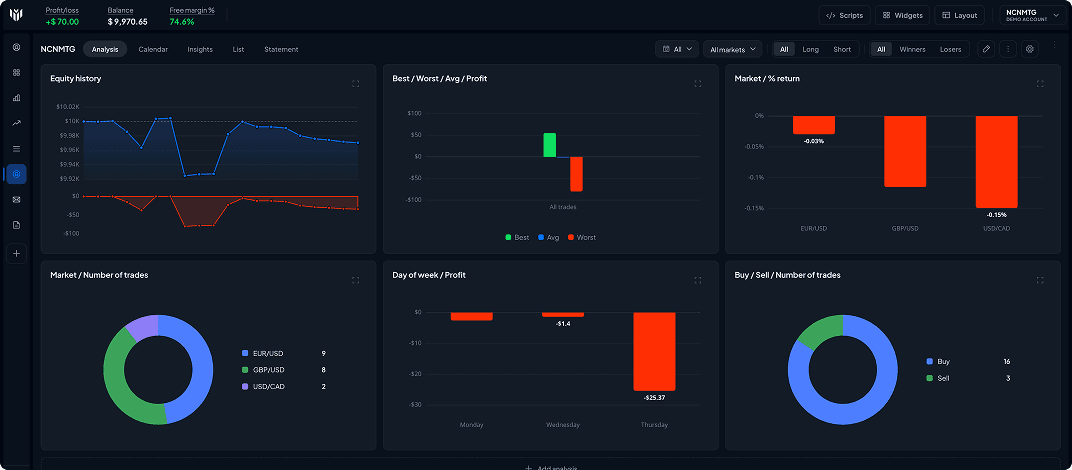
    “Build an analysis of my trades: equity history, best and worst trades, and my return by market.”

  2. Done. Your Analysis widget is open in MyTrader, with equity history, best, worst and average profit, and return by market.

Built from the one sentence above
The Analysis widget in MyTrader: equity history, best, worst and average profit, return by market, trades by market and by day of week, and buy and sell trades.

2 · Your own AI

Ask Claude, ChatGPT or any AI

Use the AI chat you already have. It takes three steps.

  1. Copy the starter prompt below.
  2. Paste it into Claude, ChatGPT or another AI and change it to what you need.
  3. Paste the code it writes into MyTrader and try it on your charts.

Starter prompt

“Read the MyTrader developer docs at llm.fxblue.com. Then write a MyTrader widget that shows my profit and loss for today, split into closed and open trades.”

Using Claude? Connect it to MyTrader and it installs the tool for you, so you can skip step 3.
Connect Claude to MyTrader

3 · Write the code

Write it yourself

Prefer to code? Tools are JavaScript, with an API for prices, indicators, your account and drawing on the chart.

  1. Read the developer docs.
  2. Start from the example below and change it.
  3. Load it in MyTrader and try it on your charts.

Example indicator

class SessionRange
  extends UserDefinedIndicator {
  onCalculate(data, output) {
    // your logic here
  }
}
Loading tools

From idea to your MyTrader

Two steps give you a tool of your own. Sharing it is up to you.

  1. Step 1

    Describe it

    Tell AI Creator or your own AI what the tool should do, in plain words. Or write the code.

  2. Step 2

    Test it in MyTrader

    Run it on your own charts or a demo account until it does what you want.

  3. Step 3 · optional

    Share it, if you like

    Give it a name, a short description and a picture, and add the code. Only if you want other traders to use it.

  4. Step 4 · optional

    Review and go live

    We check that it runs and does what the description says. Then traders can open and rate it.

Start from an idea

Copy one into AI Creator or your own AI and change it to fit how you trade.

  • Risk

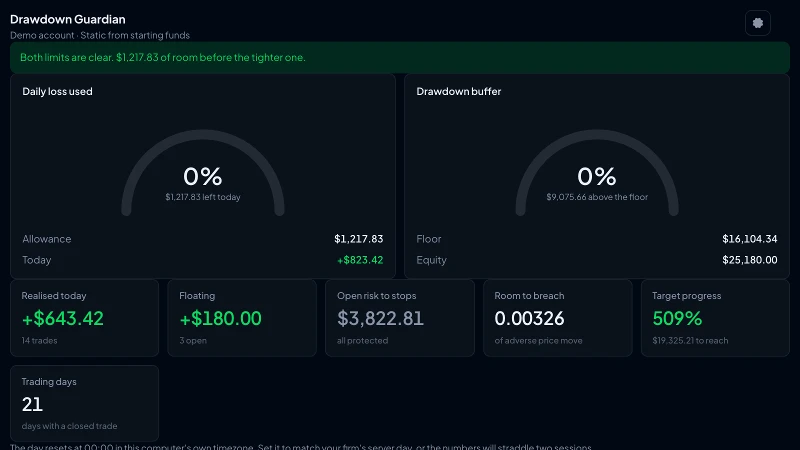
    “Show how much I can still lose today before I hit my daily loss limit.”

    Widget

  • Alerts

    “Alert me when the EUR/USD spread is wider than 2 pips.”

    Widget

  • Sessions

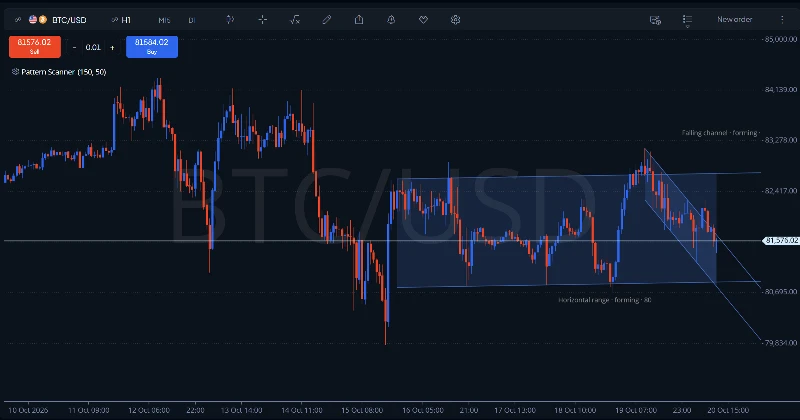
    “Shade the London session and mark its high and low.”

    Indicator

  • Journal

    “Score each closed trade against the rules I write down.”

    Widget

  • Position size

    “Work out the lot size for 1% risk from my stop loss.”

    Widget

  • Levels

    “Draw yesterday’s high, low and close on every chart.”

    Indicator

Questions about creating tools

Short answers before you build your first one.

No. AI Creator, or an AI assistant such as Claude, writes the code for you. If you do code, you can write or edit the JavaScript yourself.

No. Tools run in MyTrader only. Traders on MT4 or MT5 can connect their account to MyTrader with the MyTrader Connector EA and use the tool there.

Yes. Submit a new version from your author profile. It goes through the same check before it replaces the old one.

Once it is live, anyone on Creations Hub. Until then only you can open it in your own MyTrader.

Usually a few working days. We email you when it is live or if something needs fixing.

Have an idea for a tool?

Describe it to AI Creator or your own AI and try it in MyTrader today. Share it here when it is ready.